Material Science Research Department.Bruce Lee
In the injection molding process, finding the right material is paramount, as material properties are the critical factors influencing both the molding process and final product quality. To help users eliminate the cumbersome and time-consuming material selection process, CoreTech System (Moldex3D) has introduced Material Hub Cloud (MHC) on Moldiverse, making material selection more efficient and intelligent.
MHC offers a diverse range of continuously updated features. Among these, “My Cloud Bank” features the Material Notebook, which allows users to take note of CAE molding analysis results and to organize other information about the material. For example, the storage method and conditions, processing conditions, material properties, application areas, average market price, recycled content ratio, carbon emissions / footprint, etc.
Comprehensive and systematic material records help CAE engineers quickly retrieve simulation results. It also allows product designers and production operators to quickly access needed information during product development, enhancing cross-departmental collaboration efficiency and decision-making quality.
The following outlines the steps and tips for using Material Notebook.
Step-by-step Procedure
Step 1: Add Materials to My Cloud Bank
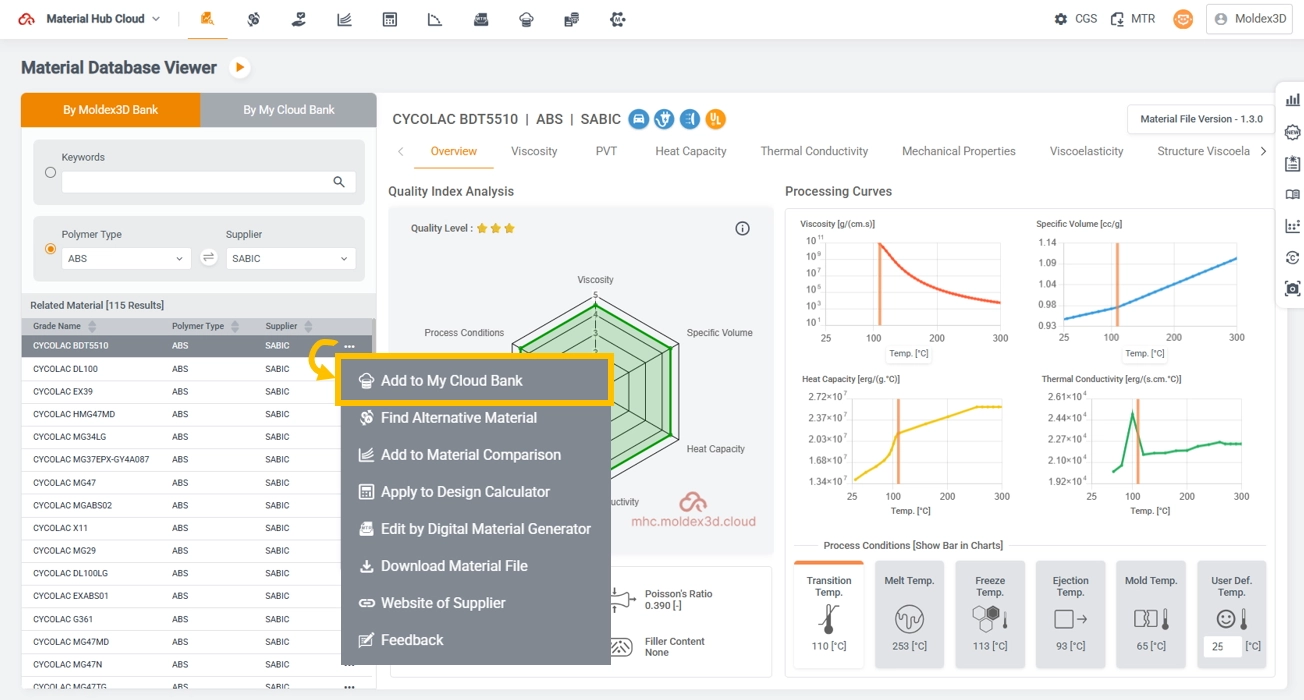
Select a material from the material list within any feature (such as Material Database Viewer, Alternative Material, Design Calculator, etc.) Next, click “Add to My Cloud Bank.”
Step 2: Open the Material Notebook
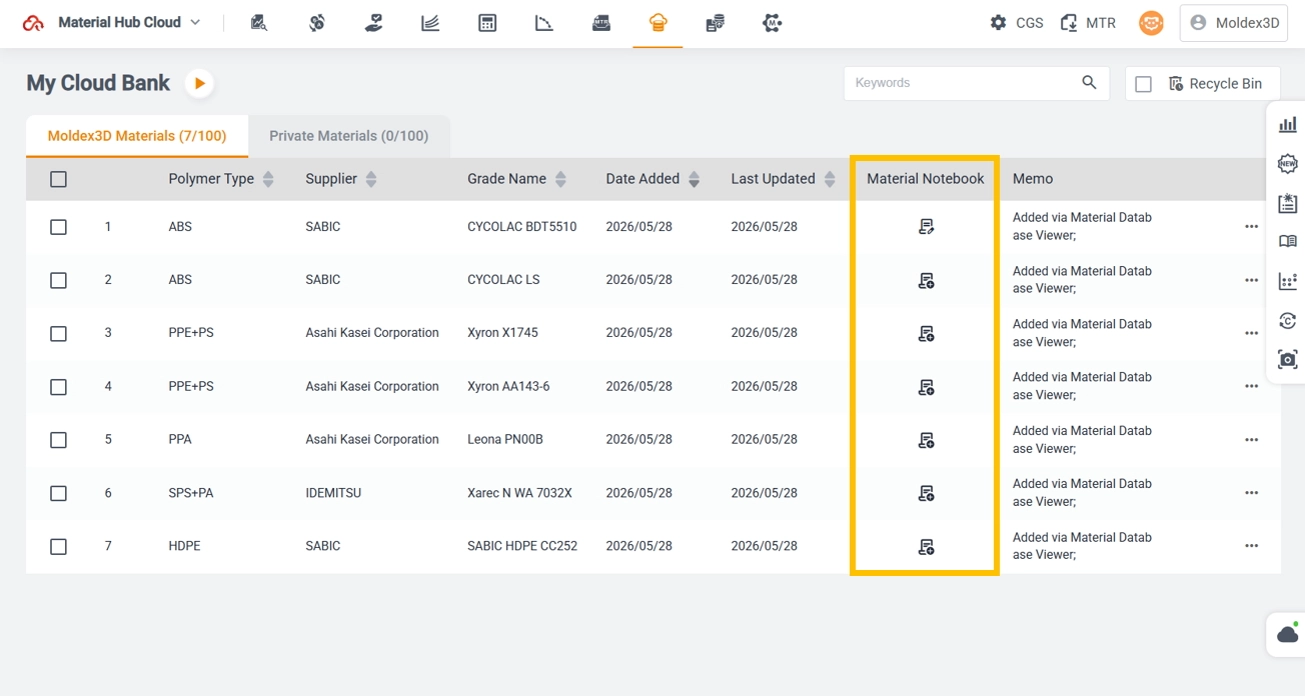
Switch to My Cloud Bank. Each material has its own dedicated Material Notebook. The first time one clicks the notebook icon, the system automatically searches the web for information related to the material, providing useful background references when taking notes.
Step 3: Edit the Material Notebook
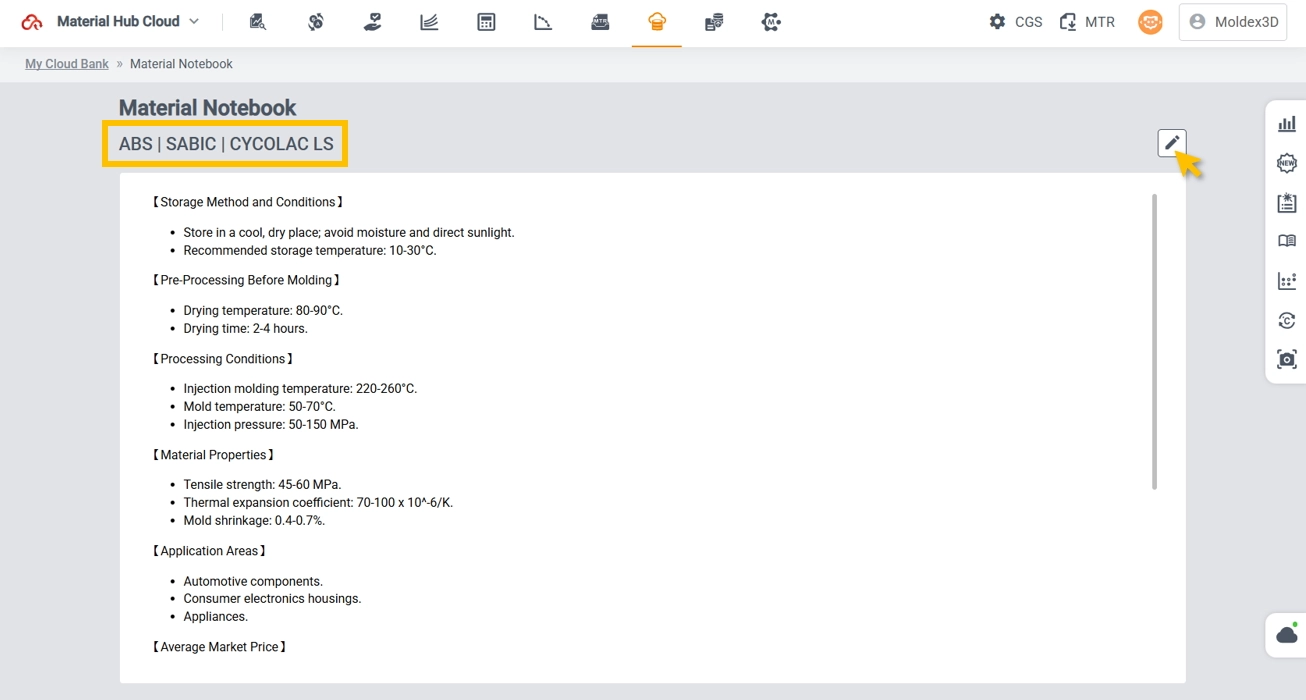
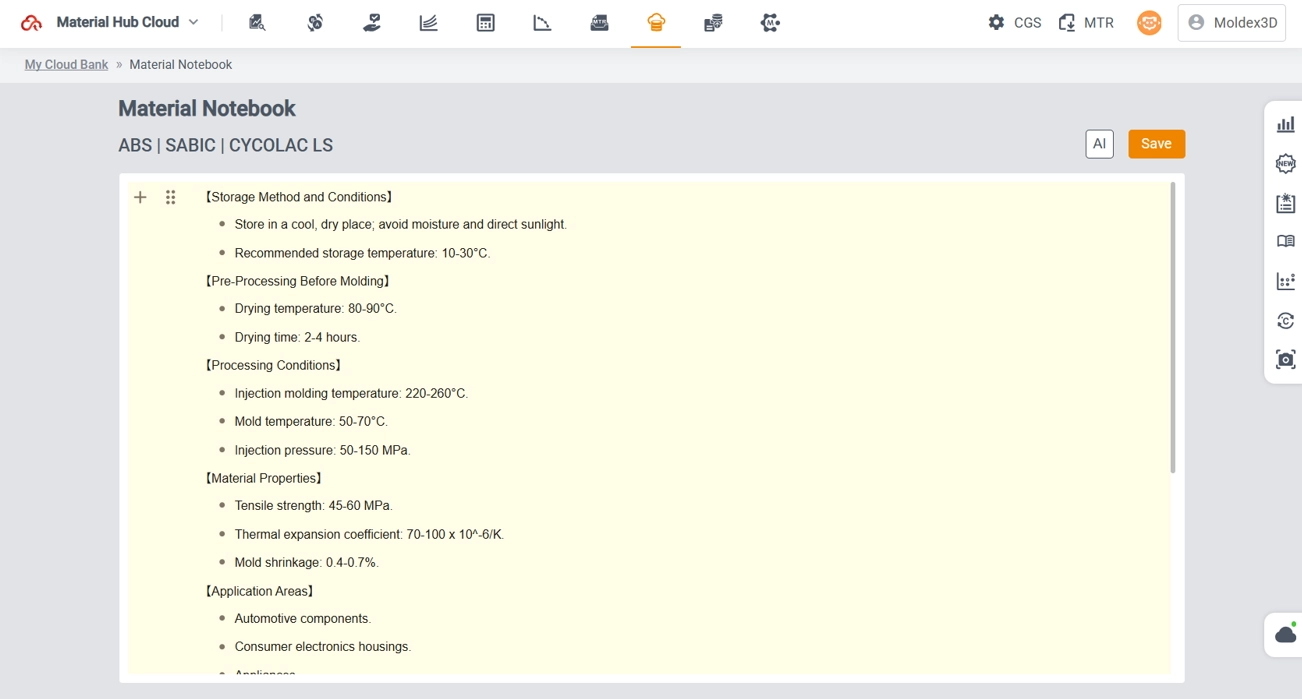
The header section displays the polymer type, supplier, and grade. Click the edit icon in the upper-right corner to freely edit the content.
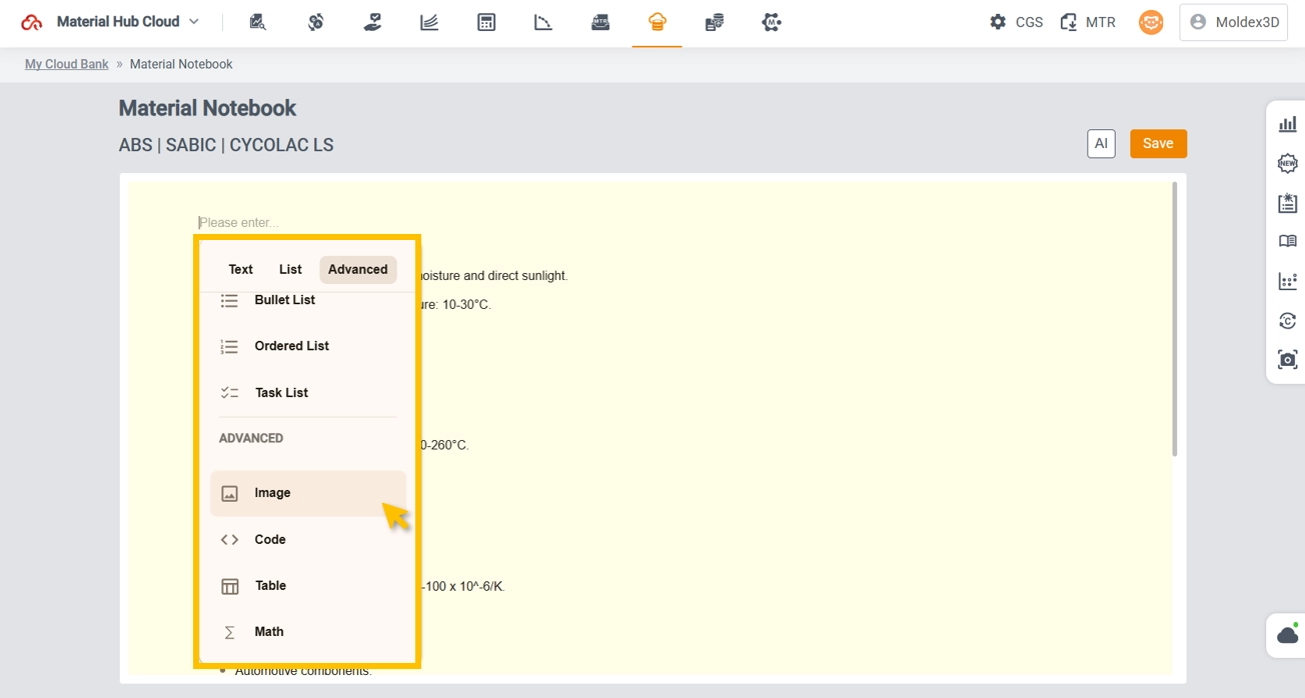
The notebook fully supports Markdown formatting, making it easy to organize information with clear structure and formatting.
Advanced Editing Features
1. Access Saved Drafts and AI Search
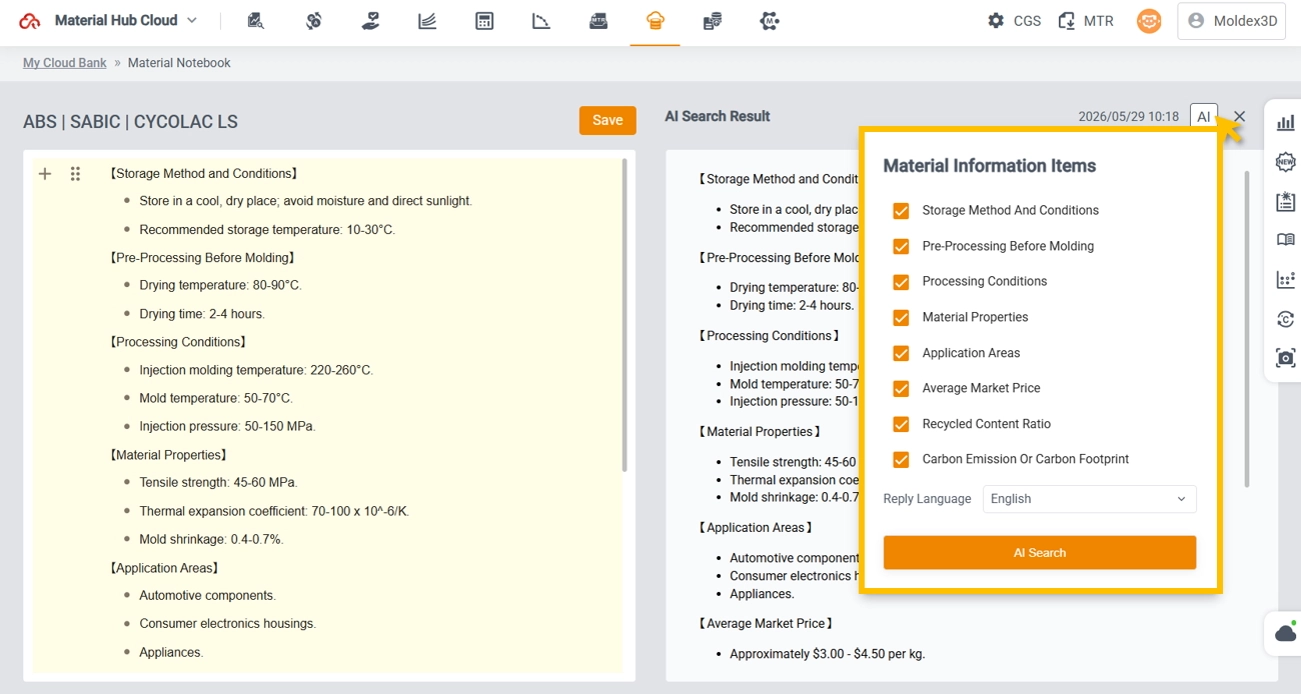
While editing, users can simultaneously open previously saved content. Meanwhile, users can click the AI Search function in the upper-right corner to find relevant information. This helps compare, add, and revise the content, making the notes more complete.
2. Support Uploading Images and Formatting
The notebook supports image uploads and various code formats. To ensure fast loading, please keep image files under 1 MB.